
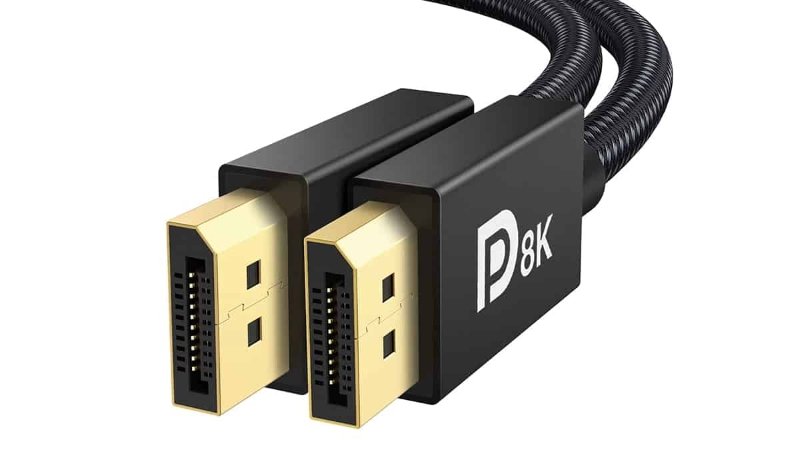
DisplayPort is a digital interface that lets you transmit video and audio signals from your device to a display. You often see DisplayPort on computers, monitors, and advanced electronics. Understanding what is displayport? helps you choose the right connection for your needs. DisplayPort supports extremely high video resolutions and refresh rates. For example, DisplayPort 2.1 can handle up to 16K resolution at 60Hz with compression, making it ideal for high-end displays. You get clear, sharp video and immersive audio every time you use DisplayPort.
If you want to compare standards, DisplayPort offers higher bandwidth and supports multi-monitor setups better than HDMI.
Feature | DisplayPort | HDMI |
|---|---|---|
Maximum Resolution | Up to 16K with compression | Up to 4K or 8K depending on version |
Maximum Refresh Rate | 240Hz at 8K | 120Hz at 4K |
Bandwidth | Up to 80Gbps | Up to 48Gbps (HDMI 2.1) |
Multi-Stream Transport (MST) | Yes | No |
Adaptability | High (supports various adapters) | Moderate |
Key Takeaways
DisplayPort is a digital interface that transmits high-quality video and audio signals, making it ideal for modern devices.
It supports high resolutions up to 16K and refresh rates up to 240Hz, providing clear visuals and smooth playback.
DisplayPort allows for multi-monitor setups through Multi-Stream Transport (MST), enhancing productivity and gaming experiences.
Using high-quality DisplayPort cables ensures reliable connections and optimal performance for your devices.
DisplayPort is preferred for gaming and professional graphics work due to its higher bandwidth and advanced features compared to HDMI.
What is DisplayPort?
DisplayPort Overview
You may wonder, what is displayport? DisplayPort is a digital interface standard that lets you send video and audio from your device to a monitor. You use this standard when you want a reliable digital audio/video connection for your computer, laptop, or other electronics. The Video Electronics Standards Association (VESA) manages the displayport standard. This group sets the rules for how devices communicate using displayport. You see displayport on many monitors, graphics cards, and docking stations. The standard supports high-quality video and audio, making it a top choice for modern devices.
DisplayPort stands out from other standards because it offers advanced features. You get higher bandwidth, better data rates, and support for multiple monitors. The table below shows how displayport compares to other digital interfaces:
Feature/Function | DisplayPort 1.4 | Other Interfaces (e.g., HDMI) |
|---|---|---|
Maximum Bandwidth | 32.4 Gbps | 18 Gbps (HDMI 2.0) |
Maximum Data Rate | 25.92 Gbps | 10.2 Gbps (HDMI 2.0) |
Support for 4K at 120Hz | Yes | Limited (HDMI 2.0) |
Support for 8K at 30Hz | Yes | Limited (HDMI 2.1) |
Display Stream Compression (DSC) | Yes | No |
Maximum Audio Channels | 32 | 8 (HDMI 2.0) |
Multi-Stream Transport (MST) | Yes | No |
Enhanced Audio Sample Rate | 1,536 kHz | 768 kHz (HDMI 2.0) |
Support for HDR10 Metadata | Yes | Limited (HDMI 2.0) |
You see the difference in bandwidth and features. Displayport lets you connect several monitors and enjoy smooth video at high resolutions. The chart below shows how displayport leads in bandwidth, data rate, audio channels, and sample rate:

Main Uses
You use displayport in many places. When you ask, what is displayport? you find it in computers, monitors, laptops, and docking stations. You see it in gaming setups, office workstations, and even in advanced medical devices. The standard helps you get clear video and rich audio for your tasks.
Displayport supports multiple monitors, which boosts your productivity. You can connect several screens to one device and manage your work more easily. The standard also works in industries like automotive, healthcare, education, and retail. The table below shows where you find displayport and how it helps each industry:
Industry | Application Description |
|---|---|
IT and Telecommunications | Vital for supporting connectivity in devices and systems, enabling multiple displays for productivity. |
Automotive | Used in infotainment and entertainment systems, requiring high-resolution video transmission for modern vehicles. |
Healthcare | Essential for medical imaging devices, ensuring high-quality displays for diagnostics and patient monitoring. |
Education | Supports interactive learning experiences through high-quality displays. |
Retail | Utilized in digital signage for dynamic content delivery. |
Digital Signage | Enhances communication and display capabilities across various sectors. |
You see displayport in more devices every year. The electronics industry has adopted displayport quickly. Over the past decade, displayport adoption in PC displays grew by 160% in one year, reaching 78 models from major brands like Apple, Dell, and Samsung. You benefit from this growth because you get access to better video quality and more advanced features.
When you choose displayport, you pick a standard that supports high-resolution video, multiple monitors, and reliable audio. You use it in many devices and industries, making it a key part of modern technology.
How DisplayPort Works
Signal Transmission
You use displayport technology to send both video and audio signals through a single cable. This makes your setup much simpler and keeps your workspace neat. Multi-Stream Transport (MST) is a key feature of displayport. It allows you to transmit video and audio at the same time. You can connect one cable from your computer to your monitor and get high-quality video and sound without extra wires.
Displayport supports a wide range of resolutions and refresh rates. You can enjoy smooth video playback, even at high resolutions like 4K or 8K. Display Stream Compression (DSC) is another important part of displayport technology. DSC lets you send large amounts of video data without losing quality. This means you can use high-performance displays without worrying about lag or image loss.
Displayport also supports daisy-chaining. You can connect multiple monitors together using one displayport output. This feature helps you build a multi-monitor setup for gaming, work, or creative projects.
Tip: If you want to connect several monitors, look for displayport connectors that support MST and daisy-chaining.
DisplayPort Connection Types
You will find several types of displayport connectors and cables. Each type fits different devices and needs. Here is a quick guide:
Type of Connector/Cable | Description |
|---|---|
Standard DisplayPort | Large connector for desktop computers and monitors. |
Mini DisplayPort | Smaller connector for laptops and some tablets. |
USB-C with DisplayPort Alt Mode | USB-C port that carries displayport signals for modern devices. |
DisplayPort to HDMI cable | Connects displayport devices to HDMI displays. |
DisplayPort to VGA cable | Connects displayport outputs to older VGA monitors. |
You can use displayport connectors with adapters to connect to HDMI, VGA, or DVI devices. USB-C ports often support displayport technology through Alternate Mode. This lets you send power, video, and audio through one cable. You get more flexibility when you use displayport connectors with modern laptops, tablets, and smartphones.
Displayport connectors give you strong compatibility and high performance. You can choose the right cable for your device and enjoy reliable video and audio every time.
Devices and DisplayPort Connection Setup

Compatible Devices
You find displayport in many modern devices. This connection supports high-resolution video and audio, making it popular for both home and professional use. You see displayport on high-end PC graphics cards, certain laptops, and monitors that support higher resolutions and refresh rates. Many USB-C ports offer displayport connection through DP Alt Mode. Thunderbolt 3 and 4 connectors also provide displayport connection support. Gaming monitors use displayport for high bandwidth, HDR, and variable refresh rates. Professional graphics applications like CAD, 3D modeling, and video editing rely on displayport for precise video output. You use displayport for multi-display setups and general computing tasks such as browsing, streaming, and document work.
High-end PC graphics cards
Laptops with displayport connection
Monitors supporting advanced video features
USB-C ports with DP Alt Mode
Thunderbolt 3 and 4 connectors
Gaming monitors
Devices for professional graphics work
Multi-display workstations
Setting Up DisplayPort Connections
You set up a displayport connection by following a few simple steps. First, check if your displayport is Dual mode (DP++) or Single mode. If you have Dual mode, you can use a passive adapter or cable to connect to an HDMI monitor. If you have Single mode, you need an active adapter or converter for compatibility. For safety, you should choose an active adapter, which works for both modes. This setup ensures your displayport connection delivers stable video and audio to your monitor.
Identify your displayport type (Dual mode or Single mode).
Use a passive adapter for Dual mode or an active adapter for Single mode.
Connect your displayport cable to your monitor.
Confirm the video signal appears on your monitor.
Tip: Always use high-quality displayport cables for reliable video transmission and secure connection.
YLS Display cable offers a high-quality solution for displayport connection in compact or custom applications. You can customize the pitch, length, pin count, plating type, reinforcement, and connector termination to fit your needs. YLS Display cable provides stable, high-speed data transmission, consistent signal integrity, and low EMI. The flexible design saves space, making it ideal for tight installations.
Multi-Monitor Support
You benefit from displayport connection when you need multiple displays. Displayport enables multi-display setups, letting you connect multiple independent displays to one device. You can use daisy-chaining to link several monitors together. This feature supports multi-display workstations, gaming rigs, and creative studios. You manage multiple independent displays for increased productivity and immersive experiences.
Multi-display setups for work and gaming
Daisy-chaining monitors for multiple independent displays
Flexible multi-display configurations
YLS Display cable supports multi-display environments and multiple independent displays. You can request custom solutions for industry-specific needs, including automotive, medical, and consumer electronics. YLS provides reliable displayport connection for any multi-display application.
DisplayPort vs HDMI and Other Alternatives

DisplayPort vs HDMI
You often see displayport and HDMI as the main choices for connecting devices to monitors or TVs. Both support high-resolution video and audio, but they have different strengths. Displayport gives you advanced features for gaming, professional graphics, and multi-monitor setups. HDMI works well for home entertainment and TVs.
The table below shows how displayport and HDMI compare in bandwidth and supported resolutions:
Feature | HDMI 2.1 | DisplayPort 1.4 |
|---|---|---|
Maximum Bandwidth | 48 Gbps | 32.4 Gbps |
Max Resolution | 8K at 60Hz | 8K at 60Hz (with DSC) |
4K at 120Hz | Yes | Yes |
4K at 188Hz | Yes | No (limited to 120Hz) |

Displayport supports Multi-Stream Transport (MST), which lets you connect several monitors to one device. HDMI does not offer this feature. You get variable refresh rates and HDR support with both, but displayport 2.1 pushes the limits with up to 80Gbps bandwidth and 8K at 60Hz uncompressed. This makes displayport ideal for high-refresh rate gaming and professional work.
DisplayPort vs DVI/VGA
You may wonder how displayport compares to older standards like DVI and VGA. Displayport uses digital signals, while VGA relies on analog. DVI supports digital and analog, but it cannot match displayport in bandwidth or resolution.
Feature | DisplayPort | DVI | VGA |
|---|---|---|---|
Signal Type | Digital | Digital/Analog | Analog |
Maximum Resolution | 4K @ 60Hz | 1920×1200 | 1920×1080 |
Bandwidth | Higher than DVI/HDMI | Lower than DP | N/A |
Multi-Stream Support | Yes | No | No |
Latency | Lower than HDMI | N/A | N/A |
Digital connections like displayport deliver better signal quality and support higher resolutions. You get sharper images and smoother video playback. DVI and VGA cannot handle high-resolution video or multi-monitor setups. Displayport stands out for professionals who need reliable video for design, editing, or research.
Pros and Cons
Note: You should choose displayport if you want the best performance for gaming, creative work, or multi-monitor setups.
Pros of DisplayPort:
Supports high-resolution video up to 8K at 60Hz
Handles multiple monitors with MST
Offers higher bandwidth for smooth video and audio
Works well with variable refresh rate technologies like FreeSync and G-Sync
Delivers lower latency and better signal quality than older standards
Cons of HDMI, DVI, and VGA:
HDMI does not support multi-monitor setups from one port
DVI and VGA have lower bandwidth and cannot handle modern high-resolution video
VGA uses analog signals, which can cause image loss and interference
Displayport gives you the flexibility and power needed for advanced setups. You get better color depth, higher refresh rates, and reliable video transmission. Professionals in photography, video editing, and scientific research benefit from displayport’s support for 10-bit color depth and high bandwidth.

If you want to future-proof your workspace or gaming station, displayport is the best choice for high-resolution video and multi-monitor support.
DisplayPort Versions and Features
Supported Resolutions
You see displayport technology evolve quickly. Each version brings new capabilities for resolution and performance. Displayport 2.0 and displayport 2.1 set new standards for higher resolutions and high refresh rates. You can compare the main versions in the table below:
Feature | DisplayPort 1.2 | DisplayPort 1.4 | DisplayPort 2.0 |
|---|---|---|---|
Supported Resolutions | 4K @ 60Hz | 4K @ 120Hz, 8K @ 60Hz | 8K @ 60Hz, 10K @ 60Hz, 16K @ 60Hz |
Bandwidth | 17.28 Gbps | 25.92 Gbps | 77.4 Gbps |
Refresh Rate | 60Hz | 120Hz (4K), 60Hz (8K) | 60Hz (8K, 10K, 16K) |
Key Features | HBR2, MST | HBR3, DSC | UHBR, Adaptive Sync |
Displayport 2.0 and displayport 2.1 support maximum resolution up to 16K at 60Hz. You get clear images and smooth motion for professional and gaming displays. The latest displayport 2.1 standard improves compatibility with USB Type-C and USB4, making it easier to connect modern devices.
Refresh Rates and Features
You benefit from displayport 2.0 and displayport 2.1 when you need high refresh rates and advanced features. These versions support high refresh rates for 4K and 8K displays. You can see the refresh rates for different resolutions in the chart below:

Displayport 2.1 supports up to 80Gbps bandwidth with UHBR20 transmission mode. You get reliable performance even over longer cables. Displayport 2.1b introduces DP80LL low-loss cables, which extend cable length and reduce signal loss.
Special features like daisy-chaining let you connect multiple monitors using one displayport 2.1 output. Adaptive Sync technology improves your gaming and video experience. Here is how Adaptive Sync works:
Your graphics card sends its frame rate to the monitor.
The monitor matches its refresh rate to the graphics card.
You see smooth visuals without tearing or stuttering.
“Adaptive-Sync enables technologies that match the display update rate to the user’s content, enabling power efficient transport over the display link and a fluid, low-latency visual experience.”
Displayport 2.0 and displayport 2.1 support higher resolutions, high refresh rates, and advanced features for demanding applications. YLS Display cable meets these high-performance requirements. You can use YLS Display cable for stable signal transmission, flexible installation, and reliable connections in compact or custom setups.
You gain many advantages when you choose displayport for your setup. Displayport offers simplicity, flexibility, and cost-effectiveness, especially for high-resolution and multi-monitor configurations. The table below highlights key benefits:
Benefit | Description |
|---|---|
Simplicity | One displayport cable reduces clutter and streamlines your workspace. |
Flexibility | Displayport supports many display models and resolutions for diverse needs. |
Productivity | Multi-Stream Transport with displayport boosts multitasking and efficiency. |
Displayport stands out with high bandwidth, daisy-chaining, and adaptive sync support. You should always select quality cables like YLS Display cable to ensure stable displayport connections and reliable performance. As you consider your next upgrade, check your device compatibility and think about how displayport can meet your needs. Displayport continues to evolve, facing competition from HDMI, USB-C, and Thunderbolt, but it remains a strong choice for high-performance displays. You can trust displayport to deliver clear visuals and seamless multi-monitor experiences.
FAQ
What devices support DisplayPort?
You find DisplayPort on many computers, monitors, laptops, and docking stations. Some tablets and smartphones also support it through USB-C ports. Always check your device specifications before connecting.
Can you use DisplayPort for audio?
You can transmit both video and audio signals with DisplayPort. Most monitors with built-in speakers play sound directly from your connected device.
How do you connect multiple monitors using DisplayPort?
You use Multi-Stream Transport (MST) to daisy-chain several monitors. Connect the first monitor to your device, then link additional monitors using DisplayPort cables.
Is DisplayPort better than HDMI for gaming?
You get higher refresh rates and better support for multi-monitor setups with DisplayPort. Many gaming monitors use DisplayPort for smooth gameplay and advanced features.
Do you need a special cable for high resolutions?
You should choose a certified DisplayPort cable for 4K or 8K displays. High-quality cables like YLS Display cable ensure stable signal transmission and reliable performance.
